You sit down to work, and within ten minutes your forearms are sticky against the desk. Your laptop fan is screaming. The screen feels like it's radiating heat. You've tried pointing a fan directly at yourself, but it just blows hot air around. The problem isn't that your room is hot. It's that your desk setup is fighting the heat without a strategy.
Most people treat a hot room like a temperature problem. It's not. It's an airflow and humidity problem. A room at 85°F with moving air can feel comfortable. A room at 78°F with stagnant air can feel unbearable. Your goal isn't to cool the whole room. It's to cool the microclimate around your body and electronics.
Here's what actually works when you don't have central air or a window unit.
Advertisement
Why Airflow Matters More Than Temperature
The human body cools itself through sweat evaporation. When air is still, the moisture stays on your skin. You feel clammy and hot. When air moves, evaporation speeds up. A breeze of 1 mph can make you feel 5-7°F cooler, according to basic evaporative cooling principles. That's why a fan works, even when it's blowing warm air.
But there is a catch. If the air temperature is higher than your skin temperature (usually around 92°F), a fan can actually heat you up by convection. Fortunately, most indoor rooms stay below that threshold. The real enemy is humidity. High humidity means your sweat doesn't evaporate, no matter how much air you move. So before you rearrange your desk, check the humidity. If it's above 70%, a dehumidifier will do more than any fan.
For typical dry heat or moderate humidity, airflow is your best tool.
The Three Zone Airflow Arrangement
Forget pointing one fan at your face. That creates a narrow stream of air and leaves the rest of your body baking. The three zone arrangement creates a moving column of air around your entire work area.
Zone 1: The intake at lower back
Place a fan behind you, at ground level, angled upward toward the underside of your desk. This draws in cooler air from the floor (air near the ground is usually a few degrees cooler than at ceiling level) and pushes it up across your legs and torso. A pedestal fan or a tall tower fan works best here. Aim for about 1500 RPM or medium speed. Too fast and you'll feel a draft on your ankles, too slow and it won't move enough air.
Tradeoff: The fan blocks some of your chair's swivel range. You'll have to scoot forward a few inches. That's fine.
Zone 2: The cross breeze at desk level
Now take a second fan (a standard desk fan, 10 to 12 inches) and place it on the left or right side of your desk, angled so it blows across your keyboard and mouse area toward the opposite corner. This does two things. First, it cools your forearms, which are often the sweatiest part of your body while typing. Second, it pushes heat away from your laptop exhaust vent. Most laptops release hot air from the left side. If your fan blows left to right, you're helping. If right to left, you're blowing hot exhaust back at yourself. Check your laptop and adjust accordingly.
Set this fan to low or medium. High speed will rattle loose papers and dry out your eyes. A constant gentle breeze of about 2-3 mph is enough.
Zone 3: The ceiling exhaust (if you have one)
If you have a ceiling fan, run it counterclockwise in summer. Standard direction. But don't run it on high. High speed creates a vortex that mixes warm ceiling air with floor air. Set it to medium or low, just enough to stir the room. If you don't have a ceiling fan, skip this zone. A box fan placed in a window, blowing outward, can substitute by pulling hot air out and drawing cooler air in from elsewhere in the house.
All three zones together create a gentle moving air envelope around you. You won't feel a strong blast. You'll feel comfortable.
Why Your Desk Fan Probably Works Against You
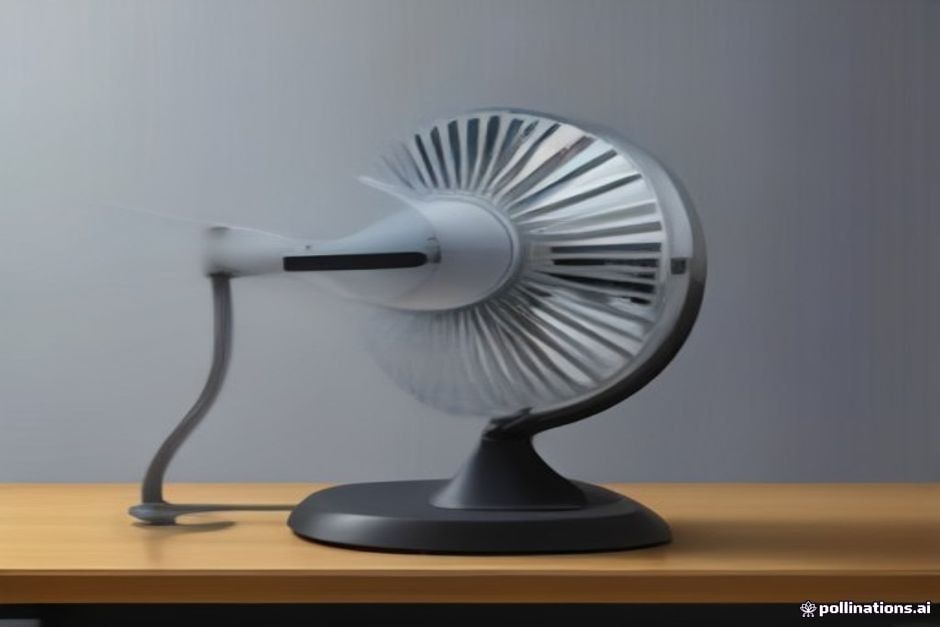
Small desk fans (6 to 8 inches) are popular because they're cheap and quiet. But they have a fatal flaw: they move very little air. A typical 6-inch fan pushes about 20-30 CFM (cubic feet per minute). A 12-inch fan pushes 60-80 CFM. That's two to three times more air, and it reaches across the whole desk rather than hitting a small patch. If you're using a tiny USB fan, you might as well be breathing on yourself.
The other mistake is pointing the fan directly at your face. That gives you instant relief, but after 15 minutes your eyes dry out, your nose gets stuffy, and you start feeling a headache. The air is too turbulent. Instead, aim the fan so it sweeps across your torso or arms, not your face. You'll stay cool without the side effects.
Also, avoid oscillating fans for desk use. The mechanism adds noise and the moving breeze is distracting. A fixed-direction fan is quieter and more predictable.
The $20 Upgrade That Changes Everything
You don't need an expensive tower fan. But there are two cheap upgrades that make a huge difference.
First, a simple timer plug. Plug your desk fan into it and set it to run for 25 minutes, then off for 5 minutes. Your body adapts to constant airflow after a while and stops feeling cool. Short breaks let your skin warm up, then the next blast feels refreshing. Plus it saves electricity and reduces fan motor wear.
Second, when you step away from your desk (bathroom, coffee, phone call), grab a mini handheld fan. Run it on your neck and wrists for 30 seconds. Those pulse points have high blood flow close to the skin, and cooling them drops your core temperature surprisingly fast. It resets your comfort for another hour at the desk. A tiny, short burst of targeted airflow beats anything a desk fan can do for those moments.
Managing Humidity and Sweat at Your Desk
Even with perfect airflow, your hands might still get sweaty on the keyboard. That's a humidity problem at the micro level. Here are a few practical fixes.
- Keep a microfiber cloth on your desk. Wipe your forearms and the keyboard surface every 30 minutes. Sounds gross, but it works.
- If you wear a watch, remove it. The trapped moisture under the band makes your whole wrist feel wet.
- Use a compressed air duster on your laptop vents once a week. Dust buildup reduces heat dissipation by up to 30%, and that extra heat radiates back at you.
- Consider a thin cooling pad under your laptop. The ones that just raise the device and allow airflow cost about $15. The ones with built-in fans are louder and not much more effective. Just elevation can drop laptop surface temperatures by 5-10°F, which means less heat on your lap.
The Simple Ceiling Fan Trick
If you have a ceiling fan, you should know one rarely mentioned detail. The direction matters, but so does the speed. On low speed, a ceiling fan moves air in a smooth column. On high speed, it creates turbulence that pulls hot air from the ceiling down to your level. Most people run it on high thinking faster is better. Set it to low or medium. You'll still feel airflow, but you won't get that layer of hot air pushed onto your head.
If you don't have a ceiling fan, a standing oscillating fan placed in a corner, set to medium and aimed at the ceiling, can create a similar effect. It stirs the room's air without blowing directly on you.
When to Give Up and Move
Sometimes no amount of airflow can fix a hot room. If any of these are true, consider relocating for the afternoon: your room temperature is above 90°F, humidity is above 80%, you've tried everything and still feel dizzy, or your laptop is overheating and shutting down.
In those cases, move to the coolest room in your house (usually the basement or north-facing room) or work from a coffee shop or library for a few hours. A portable AC unit is expensive and noisy. A box fan in a window can only do so much when outside air is also hot. Knowing when to stop fighting is part of the solution.
Practical Takeaway
You don't need to spend hundreds on cooling gadgets. You need two fans placed strategically (one at floor behind you, one at desk level across your arms) and a ceiling fan on low. That's it. Add a timer plug, a handheld fan for quick cool-downs, and a microfiber cloth. Test your setup on the hottest day. Tweak the angles. Within two hours you'll know if it works. If not, move to a different room. Heat is a nuisance, not a work stopper.
| Fan Type | Pros | Cons | Best Use |
|---|---|---|---|
| Small USB fan (6 in) | Cheap, quiet, portable | Very low CFM (20-30), only cools a small spot | Emergency personal use, not desk primary |
| Desk fan (10-12 in) | Good CFM (60-80), adjustable tilt | Noisy at high speed, takes desk space | Zone 2 cross breeze |
| Pedestal fan (16 in) | High CFM (150+), adjustable height, floor placement | Bulky, can wobble, loud at top speed | Zone 1 floor intake |
| Tower fan | Slim, quiet, oscillates | Lower CFM than pedestal, hard to clean | For background room stirring, not desk use |
| Mini handheld fan | Ultra portable, battery powered | Very low CFM (5-10), short runtime (1-2 hours) | Quick cooldowns away from desk, pulse point cooling |
- Never aim a fan directly at your face for more than a few minutes.
- Two smaller fans in different zones beat one huge fan blowing on you.
- Humidity control is more important than temperature control. Get a hygrometer ($10) and know your numbers.
- Your laptop's exhaust direction matters. Feel where hot air comes out and position fans to pull it away from you.
- Sweat is part of summer. Accept it, wipe it, and move on.